




















How Do I Delete a Reconciliation in QuickBooks?
In this article, we will share a complete guide to undo or delete a reconciliation in QuickBooks and the online version. Just follow the blog.
Are you looking for an easy walkthrough for the removal of your recent transactions from reconciliations in QuickBooks Online? If your answer is a yes, then you have landed at the correct spot. Reconciliation of an account facilitates users in making comprehending comparisons between the bank transactions and the transactions in QBO. If all the financial information matches accurately, it is an indication that the accounts are balanced.
On the contrary, if that isnt the case, the user is left with no other option but toundo or remove the transaction from reconciliations in QuickBooks online. To master this process through a lucid step-by-step walkthrough, go through the full length of this blog and read all the instructions carefully.
What is the need to Undo transactions from reconciliations?
Removal of transactions from reconciliations becomes critical in cases when the account balances show a mismatch. There may also be persuasibility that the user reconciled the transaction by accident or encountered some issue while going with the reconciliation.
Steps to Reconcile transaction in QuickBooks
It is pertinent to note that even slight changes can lead to the unbalancing of the accounts. In order to mitigate this, users should reconcile only a single transaction at one instance. The procedure toundo or remove transactions from reconciliationsis discussed below:
Step 1: Reviewing the account
The completion of the reconciliation process calls for a double-verification. During the verification process, if there is some imbalance in the account, this can have major ramifications. To make sure that this issue is avoided, a viable avenue is to cautiously check the opening, beginning, & closing balances.
Step 2: Unreconciling a transaction
Upon earmarking the transaction, the user should now follow the below-given steps for editing and unreconciling the transaction:
- Initially, head to theBookkeeping or Accountingtab, and therein, opt for theChart of accounts
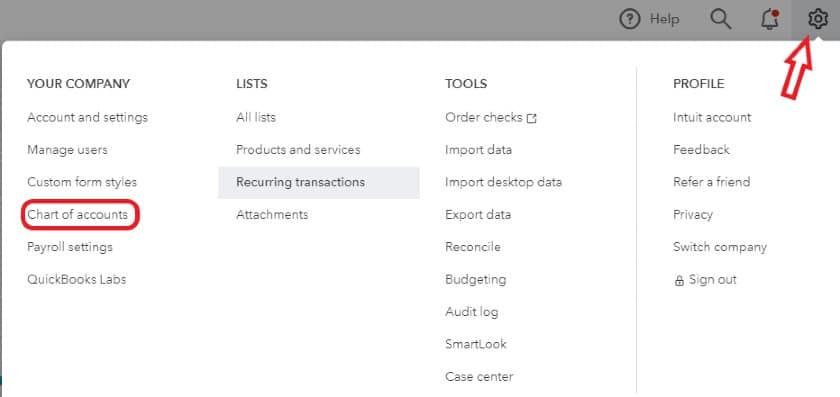
- The user should now search the account with the reconciled transaction. Afterwards, hit on theView Registe
- In case the transaction is reconciled, the user should seeRin the checkmark column. [Notably,C means Cleared,R means Reconciled, andBlank means Not Cleared or Reconciled].

- The next step requires opting for the transaction for expanding the view.
- Subsequent to that, opt for the checkbox with R until the box is empty. This should delete the transaction from the reconciliation.
- Once done with the foregoing steps, hit onSave.
- Follow up by closing the account register.
- By now, the accounts should be balanced.
Steps to invite your accountant to undo transactions from reconciliations
The procedure to invite an accountant for removing transactions is:
- Initially, hit on theGearicon, and from there, opt for the option toManage Users.
- Following that, make a move to theaccounting firms
- Herein, the user is required to hit on theInvite
- Thereafter, type in the accountant-related information correctly
- Once done with the process, the user should hit onSave.
- Allow the accountant to undo the entire reconciliation.
- If you want our experts to guide you through, reach out to our support team.
Procedure to Undo entire Transaction in QuickBooks Online Accountant
There is an easy approach to undo transaction from reconciliations. This is possible by simply using the Undo tab in QBOA users. However, if you are not using this QBO version, then you need to perform the steps mentioned in the section discussed heretofore.
The steps to undo an entire transaction in QBO Accountant are:
- In the inception, the user should start bysigning in to the QBO Accountant.
- Following that,search for the QBO Companyand open the same.
- Afterwards, make a move to theaccountingtab, and from there, reach out to theReconcile
- Herein, the user needs to proceed by tapping on theHistory by account
- Following that, follow up by choosing the account to reconcile.
- Subsequent to that, hit on theView Reportoption, and thereafter, go for the reviewing of the discrepancies.
- Once ready, hit on thedropdownmenuwithin theAction column, and therein, tap on theUndo
- Following that, hit onYes, and finally, tap onUndoto finalize the removal of the transaction from reconciliation.
Conclusion
This brief article unraveled crucial steps to help usersundo or remove transactions from reconciliations in QuickBooks Online. If you need assistance on any other technical issue encountered in QuickBooks, just give ourQuickBooks desktop error supportexperts a call at the helpline, +1-888-368-8874.